Browse without mounting
Browse shows the files of a drive inside NetDrive, without mounting the drive. You can upload and download files, make folders, and rename, move, or delete items. It works whether or not the drive is mounted, and on a Mac it does not need the file system extension.
Drives saved On this device only cannot be opened in Browse. See Location.
Open a drive
Click Browse in the left menu.
When no drive is open, Browse shows the drives you can open. Recently browsed lists up to four drives you opened recently, with the folder where you left off (Root is the top of the drive). All drives lists every drive you can open, with its state. To find a drive, type part of its name or storage type in Search drives.

Click a drive.
NetDrive shows "Connecting to …" while it connects. "This can take a while depending on the protocol." To stop, click Cancel.
You can also click Browse on a drive's row in Drives. See Mount and manage drives.
To switch to another drive, click the drive name at the top (Pick a drive… when no drive is open) and choose a drive. You can search in that menu, too. The dot after the drive name shows whether the drive is mounted (point to it to see the state). You can browse the drive either way.
To go back to the list of drives, click the grid icon at the left of the folder path (Drive picker).
When you open a drive again, NetDrive opens the folder where you left off. To always start at the top of the drive, turn off Resume browsing from last folder in Settings > Browse.
The folder view
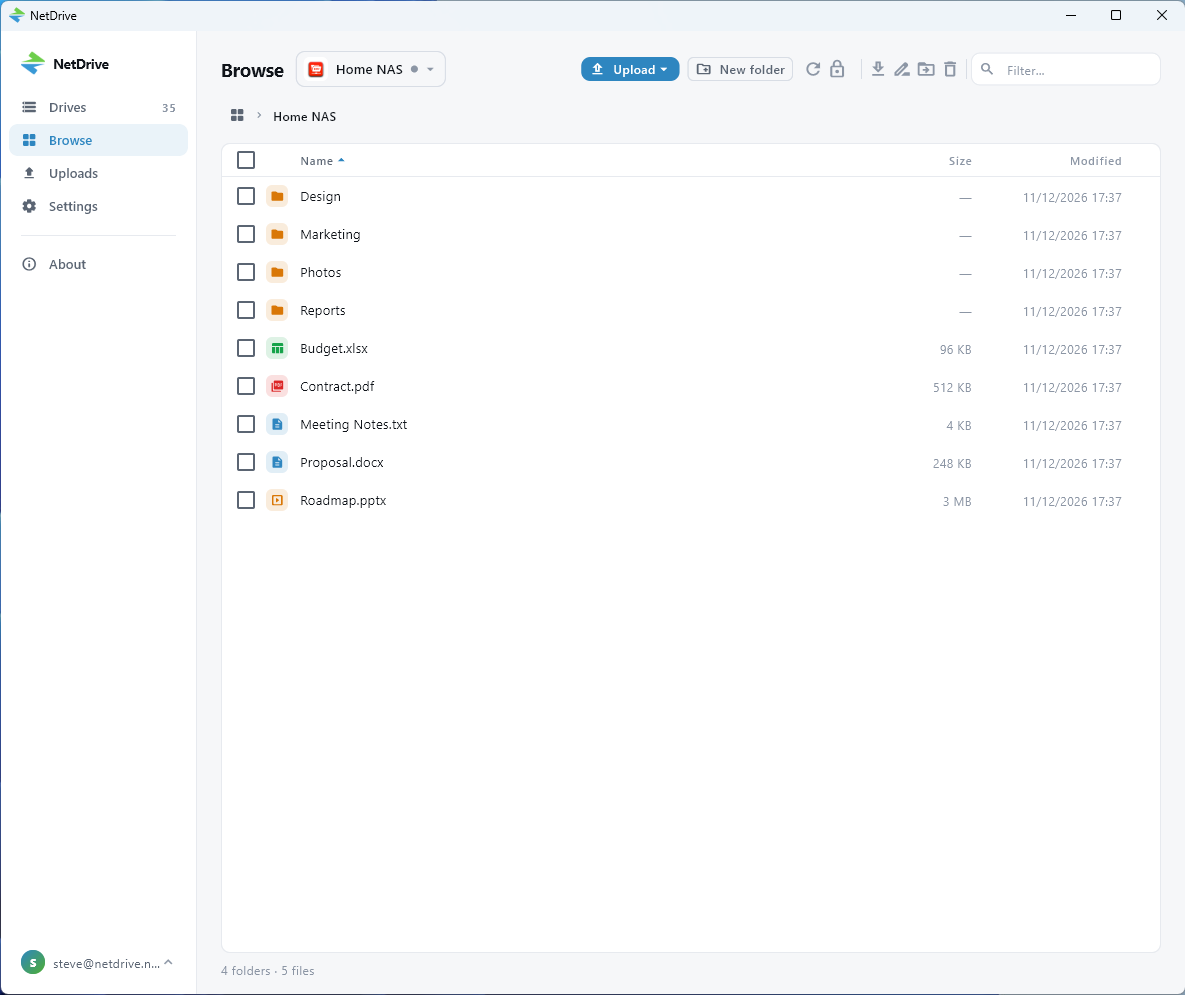
- The folder path is under the title. Click a folder in the path to go back to it.
- Folders come first, then files. Double-click a folder (or select it and press Enter) to open it. Browse does not open files in apps. To work on a file, download it, or mount the drive and open the file from File Explorer or Finder.
- Click Name, Size, or Modified to sort by that column. Click it again to reverse the order.
- Filter… shows only the items in this folder whose names contain the text you type. In a narrow window it becomes a magnifier icon.
- The bar at the bottom shows how many folders and files there are, such as "4 folders · 5 files", and how many items you selected.
- If a folder holds more than 100,000 items, NetDrive shows only the first 100,000 with "Showing the first 100000 items only."
- Refresh reads the folder again.
Select items
- Click the checkbox or the row to select an item. Click again to clear it. Shift-click selects a range.
- The checkbox in the header selects everything in the folder. While a filter is on, it selects only the items you see.
- Press Esc, or click an empty part of the list, to clear the selection.
Toolbar
The toolbar has Upload, New folder, Refresh, and Locked files on the left. Download, Rename…, Move…, and Delete… act on the selected items, and Filter… is at the end. In a narrow window, the toolbar shows icons only; point to an icon to see its name. If a button is dimmed, point to it to see why.
Locked files (the lock icon) opens the list of locked files on the drive. See File lock.
Right-click menu
Right-click an item, or click ⋮ at the end of its row.
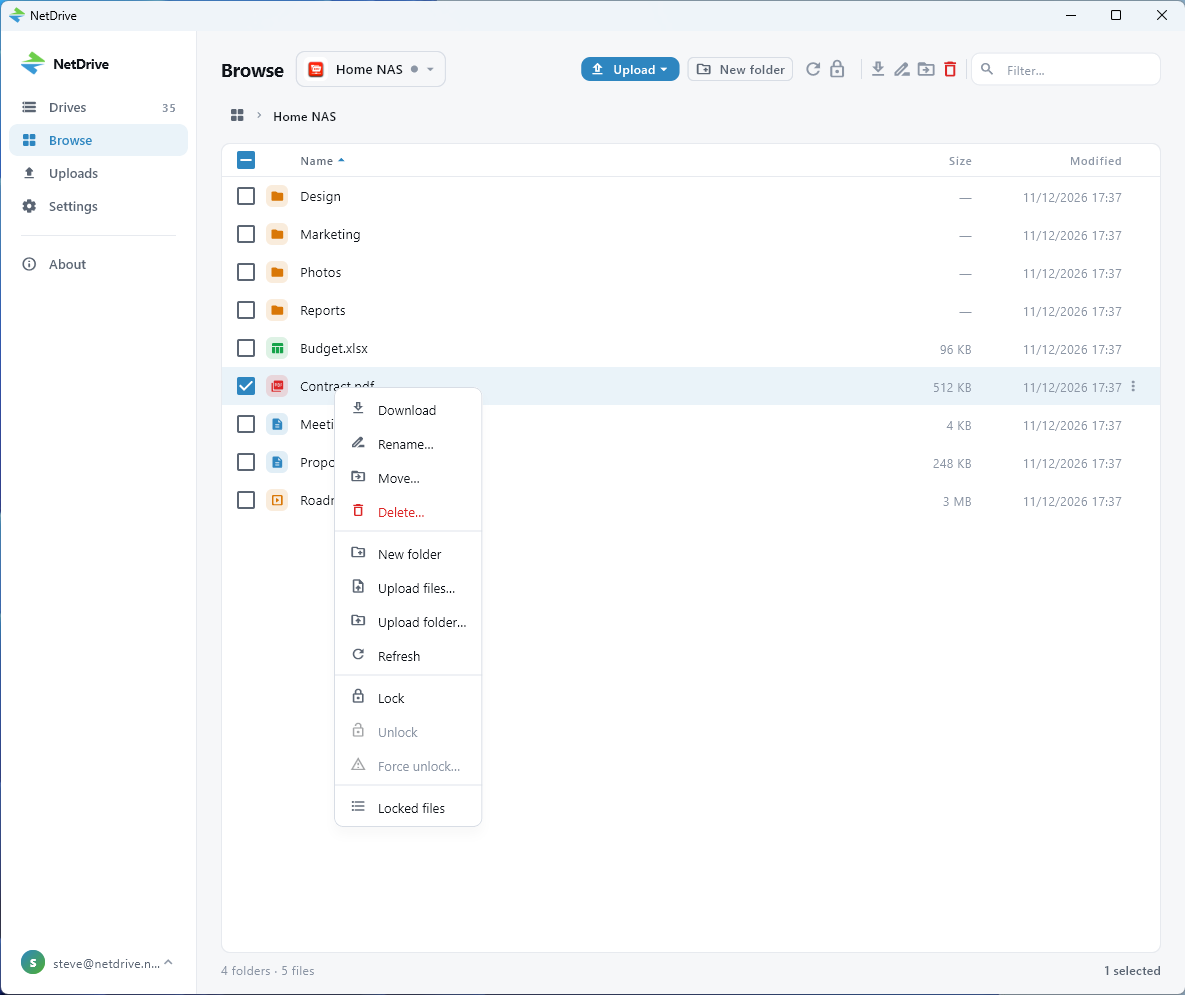
- For one item: Download, Rename…, Move…, and Delete…, then New folder, Upload files…, Upload folder…, and Refresh for the current folder, then the file lock items.
- For several items: the same actions with the number of items, such as Download 3 items, and the file lock items. Rename… is not offered.
- Right-click an empty part of the list for New folder, Upload files…, Upload folder…, and Refresh.
Items you can't use for the selection are left out. The file lock items, and items blocked because a file is locked, stay in the menu but are dimmed; point to one to see why. The file lock items are explained in File lock.
Upload files
- Open the folder you want to upload to.
- Click Upload, and then click Upload files… or Upload folder…. Upload folder… uploads the folder with everything in it, including subfolders.
You can also drag files and folders from File Explorer or Finder onto the list. NetDrive shows Drop to upload and "Uploading to …" with the folder. Drop them to upload them to the current folder.
If some files are already in the folder, NetDrive asks what to do with them before it starts:
- Skip (selected first): "Files that are already there are not uploaded."
- Overwrite: "The file on the drive is replaced." A file cannot be overwritten when the item on the drive is a folder or a locked file.
- Keep both: the file is uploaded under a new name, with a number such as
(1)added.
Click Apply. Your choice applies to every file in this upload, including files in subfolders. Click Cancel to upload nothing.
While files are being uploaded or downloaded, the bar at the bottom shows how many, such as "2 transferring". Cancel all stops them. You can follow each file, and cancel or retry it, on the Uploads screen. See Uploads.
Download files
- Select the files or folders you want.
- Click Download in the toolbar or in the right-click menu.
NetDrive does not ask where to save. Files go to Download location for Browse in Settings > Browse. By default this is the Downloads folder in your user folder. To change it, click Browse next to the path and choose a folder. Use default goes back to the Downloads folder.
- If a file with the same name is already there, NetDrive adds a number, such as
report (1).pdf. - A folder is downloaded with the folders and files inside it. Empty folders are not created.
- Downloaded files are listed under DOWNLOADED on the Uploads screen, with Show in folder.
If you turn on Show the file path when a download completes in Settings > Browse, NetDrive shows "Download complete — …" with the path when a file finishes, and Show in folder to open it.
Make, rename, move, and delete
- New folder: enter a name and click Create. A name cannot contain “/”, and it cannot be the same as something already in the folder.
- Rename…: works on one item at a time. Enter the new name and click Rename.
- Move…: Choose a destination opens. Open the folder you want and click Move here. If the destination already has an item with the same name, NetDrive adds a number such as
(1)to the moved item. You can also drag the selected items onto a folder in the list or onto a folder in the path. - Delete…: NetDrive asks first: "They are removed from the drive. This cannot be undone." If you selected folders, it also says "Everything inside the selected folders is deleted too." Click Delete. You can also press the Delete key (fn+Delete on a Mac laptop keyboard).
If some items could not be processed, NetDrive lists them with the reason for each.
Locked files, and folders that contain locked files, cannot be renamed, moved, or deleted. See File lock.
When a drive does not open
If NetDrive cannot connect, it shows Could not open this drive and the reason. Correct the cause and click Try again. Some reasons:
- "Cannot reach the server (connection error)." Check your network and the server.
- "The stored credentials were rejected." Correct the drive's credentials with Edit in Drives.
- "This team drive isn’t set up yet. Set up your credentials in Drives first." See Team drives.
If the drive's sign-in has expired, NetDrive renews it by itself when it can. Otherwise:
- For storage you sign in to on the web, your browser opens and NetDrive shows "Sign in again in your browser". Finish signing in there. If you closed the browser window, click Cancel.
- If NetDrive cannot tell whether the sign-in expired or the server just did not answer, it asks Sign in again?. Click Try again first. If that does not help, click Sign in.
- For storage that uses a password or a verification code, NetDrive asks for it in the same way as when you mount the drive.
After it reconnects, NetDrive may show "Reconnected. What you just did may not have gone through — please do it again."
Browse settings
These are in Settings > Browse. See Settings.
- Download location for Browse: where downloads are saved.
- Resume browsing from last folder (on by default): open each drive at the folder where you left off.
- Show the file path when a download completes: show a message with the path when a download finishes.