Team License
With a Team plan, each team member signs in to NetDrive with their own account and has their own drives. The team admin buys the licenses and manages the team on the web: who is in the team and how many licenses each member gets. For the kinds of plans, see License. For prices, see the Pricing page.
Roles in a team
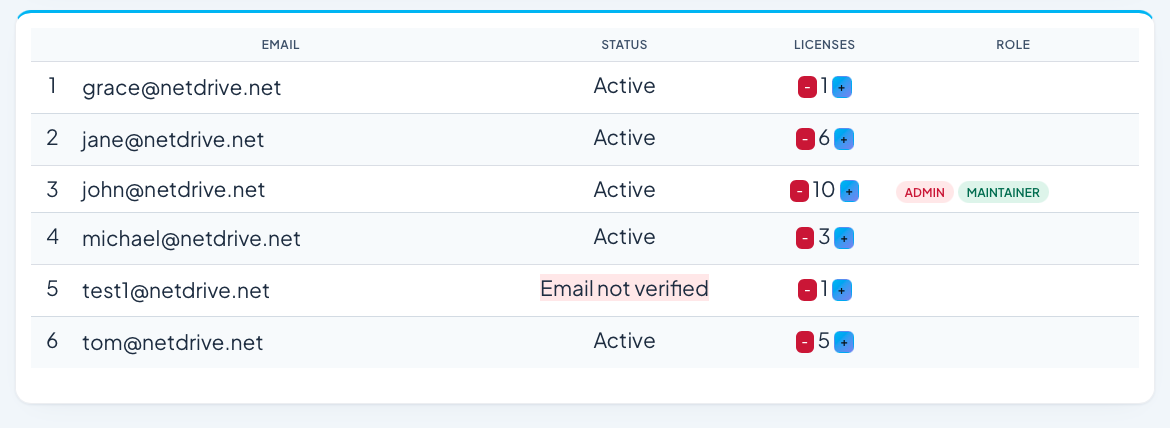
- Team admin: the account that bought the Team license or started the Team trial. The team admin adds and removes members, assigns licenses, and buys more licenses. On the team manage page, the admin's role is ADMIN.
- Team members: they sign in to NetDrive with their own accounts. A member can use NetDrive on as many devices at a time as the licenses the admin assigned to them.
- Team maintainer: makes and publishes team drives for the team. By default, the team admin is also the team maintainer. The role is shown as MAINTAINER. See Team drives.
Try a Team plan
You can try a Team plan for free from your account page:
- Open your account page. In NetDrive, click your account at the bottom left of the window and click Manage account.
- Under Plans & Products, click Start Trial or Purchase next to NetDrive.
- Click Click here if you need a trial period, and then Start Free Trial of TEAM Plan. The page shows how many days the trial lasts.
During the Team trial, you can assign up to 3 licenses in total. The NetDrive page of your account then has Cancel Trial and Purchase License. If you cancel the trial, you cannot start it again.
The Monthly Team plan on the Pricing page also starts with a free trial. See License.
Open the team manage page
- Sign in to your account page as the team admin.
- Under Plans & Products, click Manage next to NetDrive (during a Team trial, the button is Details).
- In the part with your team's name, click Manage.
The team manage page has two tabs, Members and Domains. At the top of Members, you see Total licenses, Assigned, and Available.
Add team members
- On the Members tab, find Add Member.
- Enter the member's email address.
- If the member doesn't have an account yet, you can enter an initial password. If you leave it empty, a password is made for them. The initial password only applies to new accounts.
- Leave Assign a license if available selected to give the member one license right away.
- Click Add.
The member gets an email saying that they were added to your team. For a new account, the email includes the password, and the member should change it after signing in.
You cannot add an account that is already in another team or has its own Personal license. To add many members at once from a CSV file, contact [email protected].
Assign licenses to members
In the members list, the Licenses column shows how many licenses each member has.
- Click + to assign one more license to the member. It is available only when the team has an unassigned license.
- Click - to take one license back. If the member is then using NetDrive on more devices than they have licenses, the member is signed out on all their devices.
A member with no license cannot use NetDrive. On their account page, they see that they should contact the team admin.
Remove or deactivate members
- In the members list, point to the member's row, and click the red ✕ icon that appears next to them.
- Choose one:
- Remove: removes the account from your team. The account's NetDrive devices are deactivated, and the account gets an email about it. If the account's email address is in a verified team domain, the account is also deactivated.
- Deactivate: only for accounts with a verified team domain (see below). The account stays in the team but cannot sign in. To turn it back on, point to it and click the blue + icon.
The team admin cannot be removed. To remove the team maintainer, first give the maintainer role to another member.
Add licenses
- Under Plans & Products on your account page, click Manage next to NetDrive.
- Click Add License, or Add/Remove License for a Monthly or Yearly subscription.
- In Change Total License to, choose the new total number of licenses for the team, and click Proceed to checkout.
The new licenses are added to Available on the team manage page. Assign them to members there. To lower the number of licenses of a subscription below the number assigned to members, first take licenses back from members. For more about prorating and removing licenses, see License.
Change the admin or maintainer
Below the members list, Change Maintainer moves the team maintainer role to another member, and Change Administrator makes another member the team admin. When the maintainer changes, team drives that are not published are removed from the current maintainer.
Team domains
On the Domains tab, you can register up to two domains, such as your company's email domain. This is optional.
- Enter the domain.
- Click How to verify domain ownership below the domain. It shows a DNS TXT record and a DNS CNAME record. Add one of them to your domain's DNS.
- Click the click here link below the records to verify the domain.
After the domain is verified, new accounts that sign up with an email address in that domain are added to your team. You can also deactivate and reactivate members whose email address is in that domain.