Settings
Click Settings in the left menu. All settings are on one page, grouped under General, Appearance and language, Drives, Browse, Updates, Cache, Logs, Network, and Troubleshooting. Scroll down to see them all.
There is no Save button. NetDrive saves each change as you make it.
You can also open Settings from the sign-in screen, before you sign in. Then a ← button at the top takes you back to the sign-in screen. See Sign in and sign out.
When settings cannot be changed
Most settings are kept by the NetDrive background service. A message at the top of the page tells you when that service cannot take them:
- "The background service is still starting. Some settings can be changed once it is ready." Those settings are dimmed until the service is ready. Start automatically when I sign in, Appearance, Language, the Browse settings except the file path message, and Proxy settings can be changed at any time.
- "Could not load the settings." Click Try again.
- "Could not save the settings. The background service is not responding." The setting goes back to its previous value. Click Try again to read the settings again. If it keeps happening, see Restart the background service.
General
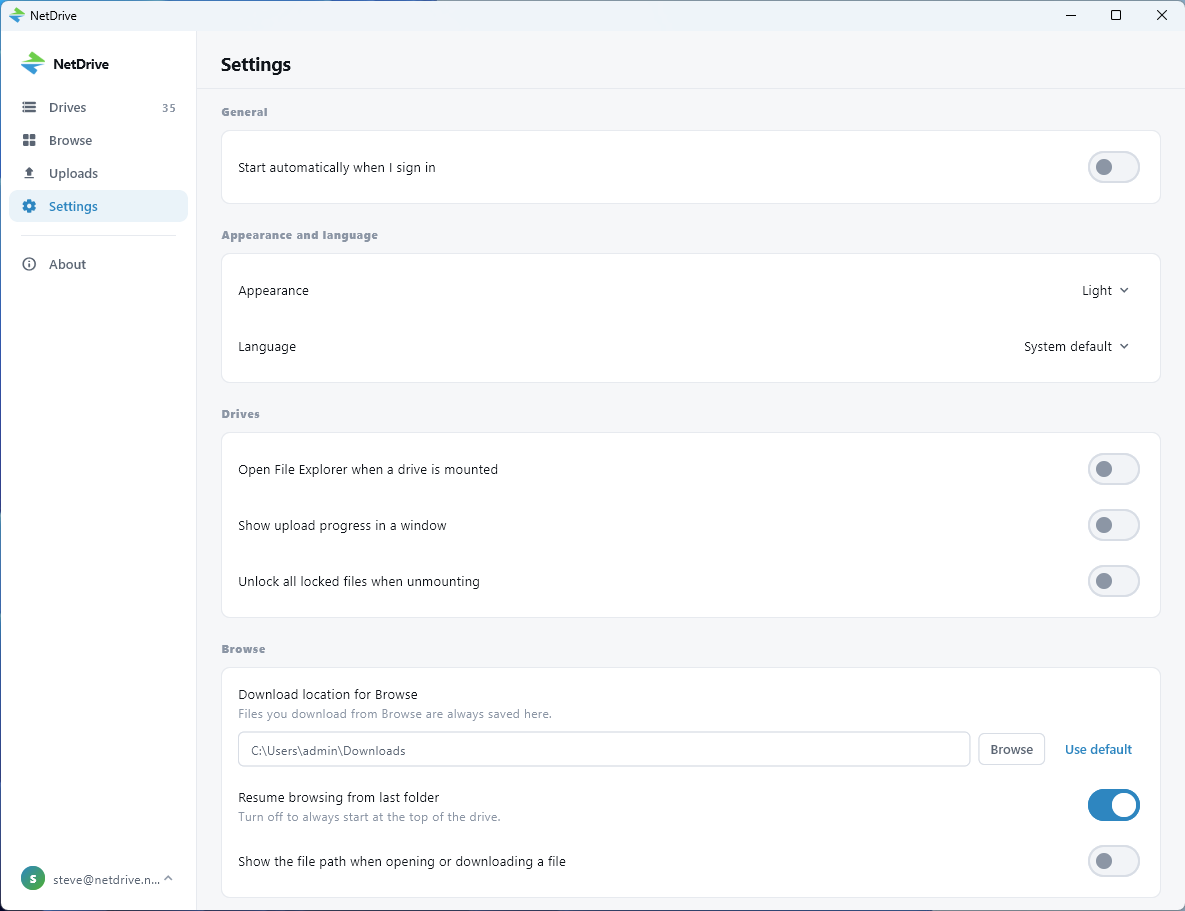
- Start automatically when I sign in: starts NetDrive when you sign in to Windows or macOS. If NetDrive cannot change this, it shows "Could not change the startup setting."
Appearance and language
- Appearance: Match system setting, Light, or Dark. The account menu at the bottom left has the same setting; see The main window.
- Language: System default follows the language of your computer. The other choices are the languages NetDrive is available in, each shown in its own language, such as Deutsch or 한국어. The language changes right away, also in the menu of the NetDrive icon in the tray or menu bar.
Drives
- Open File Explorer when a drive is mounted (on a Mac: Open Finder when a drive is mounted): after you click Mount, the drive opens in File Explorer or Finder. Drives that are mounted automatically do not open by themselves.
Show upload progress in a window: shows uploads from mounted drives in a small window at the bottom right of the screen. See Uploads.
On Apple Silicon Macs with macOS 26 or later, this setting is not shown. Instead, the page says "On this Mac, drives connect through FSKit, so upload progress isn’t shown in a separate window. You can follow it on the Uploads screen."
Unlock all locked files when unmounting: NetDrive unlocks the locked files when you unmount a drive. See File lock.
Browse
- Download location for Browse: "Files you download from Browse are always saved here." Click Browse to choose another folder, or Use default to go back to the Downloads folder in your user folder.
- Resume browsing from last folder (on by default): opens each drive at the folder where you left off. "Turn off to always start at the top of the drive."
- Show the file path when a download completes: when a download in Browse finishes, NetDrive shows a message with the place where the file was saved.
Updates
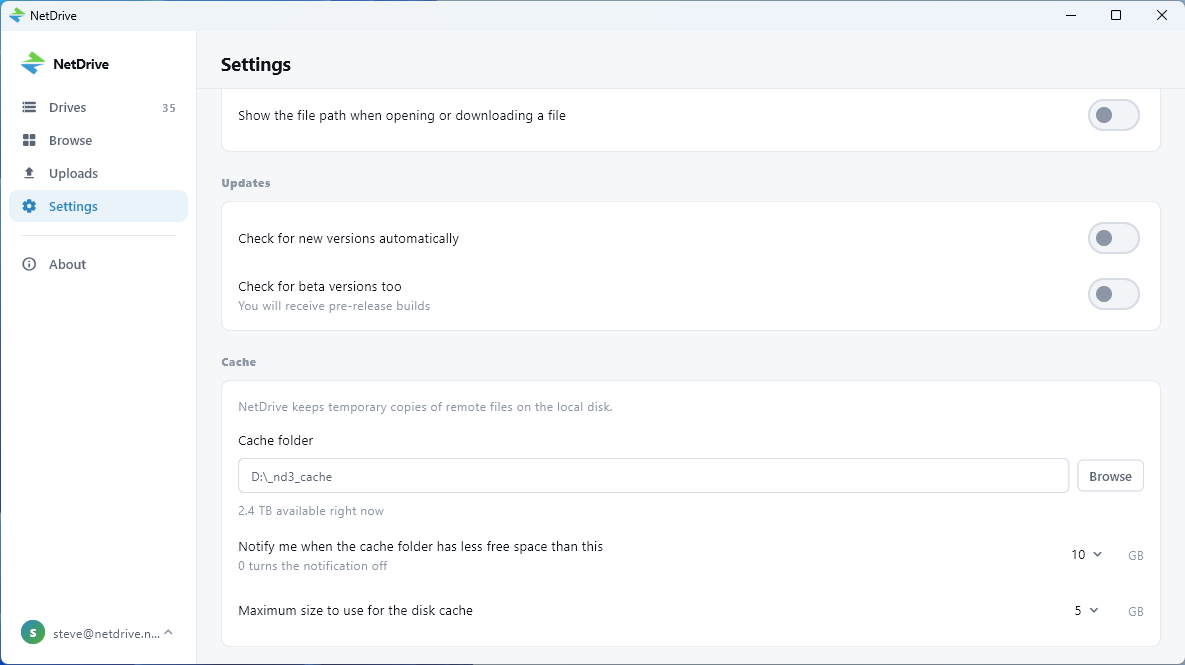
- Check for new versions automatically: NetDrive checks after you sign in and then every 12 hours. When a new version is out, it shows Update Available. See About and updates.
- Check for beta versions too: "You will receive pre-release builds". Beta versions are included when NetDrive checks for new versions. See Beta versions.
Cache
"NetDrive keeps temporary copies of remote files on the local disk." These settings decide where those copies are kept and how much space they may use.
- Cache folder: the folder for the cache. Click Browse to choose another folder. The free space on that disk appears below, such as "2.4 TB available right now".
- Notify me when the cache folder has less free space than this: choose a size from 3 to 20 GB. "0 turns the notification off".
- Maximum size to use for the disk cache: choose a size from 1 to 1000 GB.
On Apple Silicon Macs with macOS 26 or later, the page says "On this Mac, drives connect through FSKit, which keeps the cache in a location chosen by the system, up to 4 GB per drive. The cache path and maximum size settings don’t apply." Cache folder and Maximum size to use for the disk cache cannot be changed there.
Logs
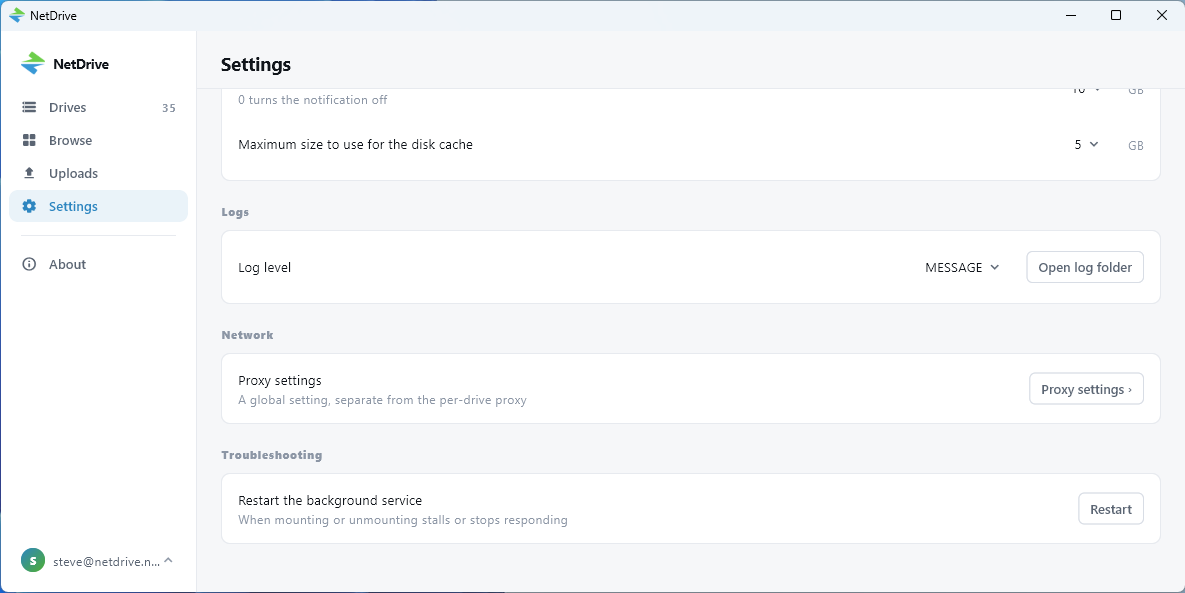
- Log level: how much detail NetDrive writes to its log files. From the most detail to the least: VERBOSE, DEBUG, MESSAGE, WARNING, ERROR, CRITICAL.
- Open log folder: shows the folder with the log files in File Explorer or Finder.
When you report a problem, our support team may ask for the log files. See Collect and send logs.
Network
- Proxy settings: "A global setting, separate from the per-drive proxy". Click Proxy settings › to open it.
Proxy settings
This is the proxy NetDrive uses for its own connections to the internet, for example to sign you in and to check for updates. Each drive can also have its own proxy; see Proxy for this drive.
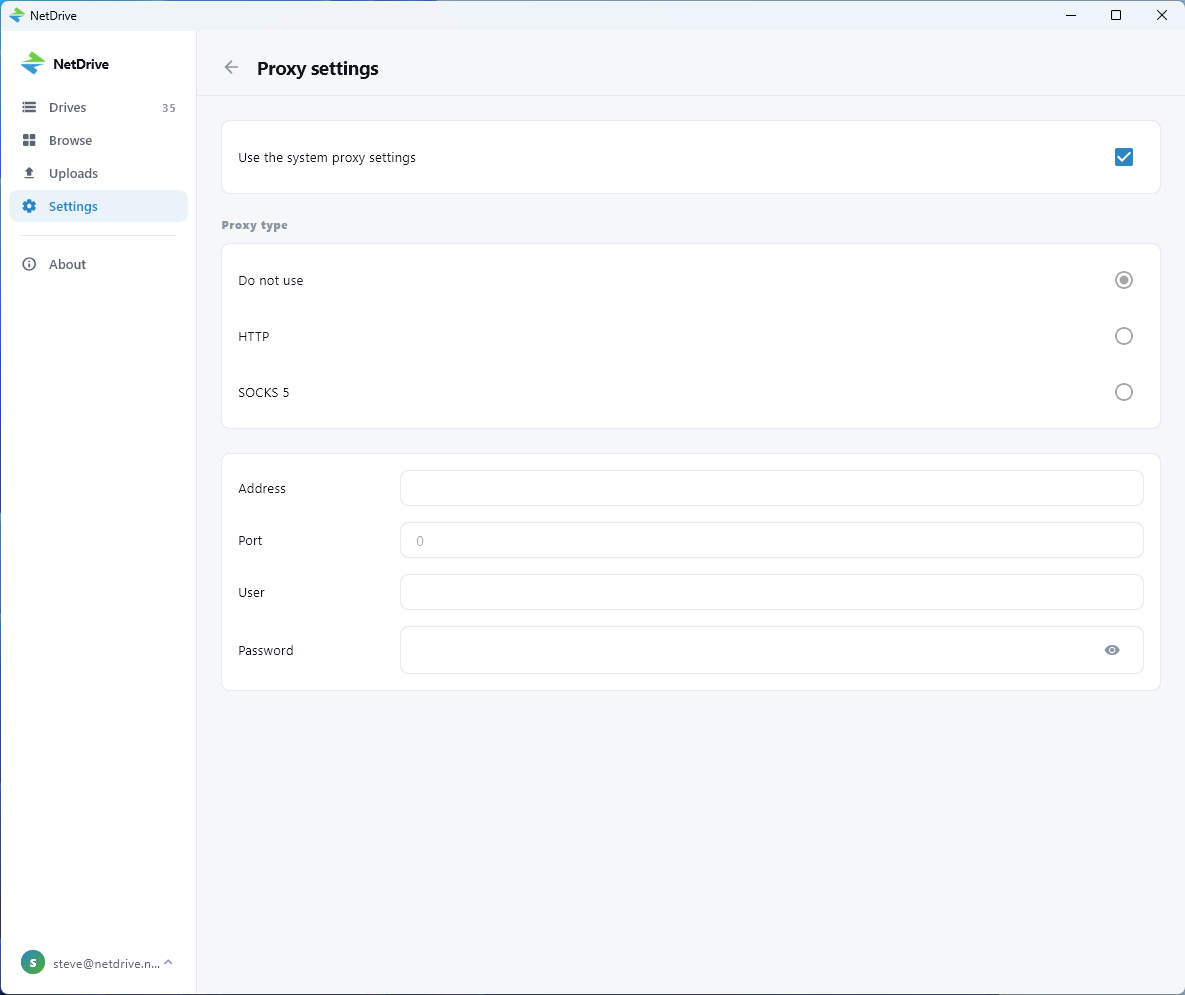
- Use the system proxy settings: uses the proxy set on your computer. While it is selected, the settings below cannot be changed.
- Proxy type: Do not use, HTTP, or SOCKS 5.
- Address and Port: the proxy server. They can be changed when Proxy type is HTTP or SOCKS 5.
- User and Password: enter them if the proxy needs a sign-in.
The proxy settings are saved like the other settings. What you type in a box is saved when you leave the box or press Enter. Click ← to go back.
NetDrive does not show a saved password. If one is saved, the empty Password box says "Saved — type a new one to change it". To delete it, click the button in the box (Remove the saved password).
If the page says "Could not load the proxy settings." or "Could not save the proxy settings. The background service is not responding.", go back and open Proxy settings again. If it keeps happening, see Restart the background service.
Troubleshooting
- Restart the background service: "When mounting or unmounting stalls or stops responding". Click Restart. See Restart the background service.