FTP
This guide covers the FTP form, including FTP over SSL/TLS (FTPS). For the parts of the Add drive form that every storage shares, see Add a drive. For SFTP (file transfer over SSH), see SFTP.
Connect to an FTP server
- Click Drives in the left menu, and then click Add drive.
- In Storage type, choose FTP. It is in the Frequently used group.
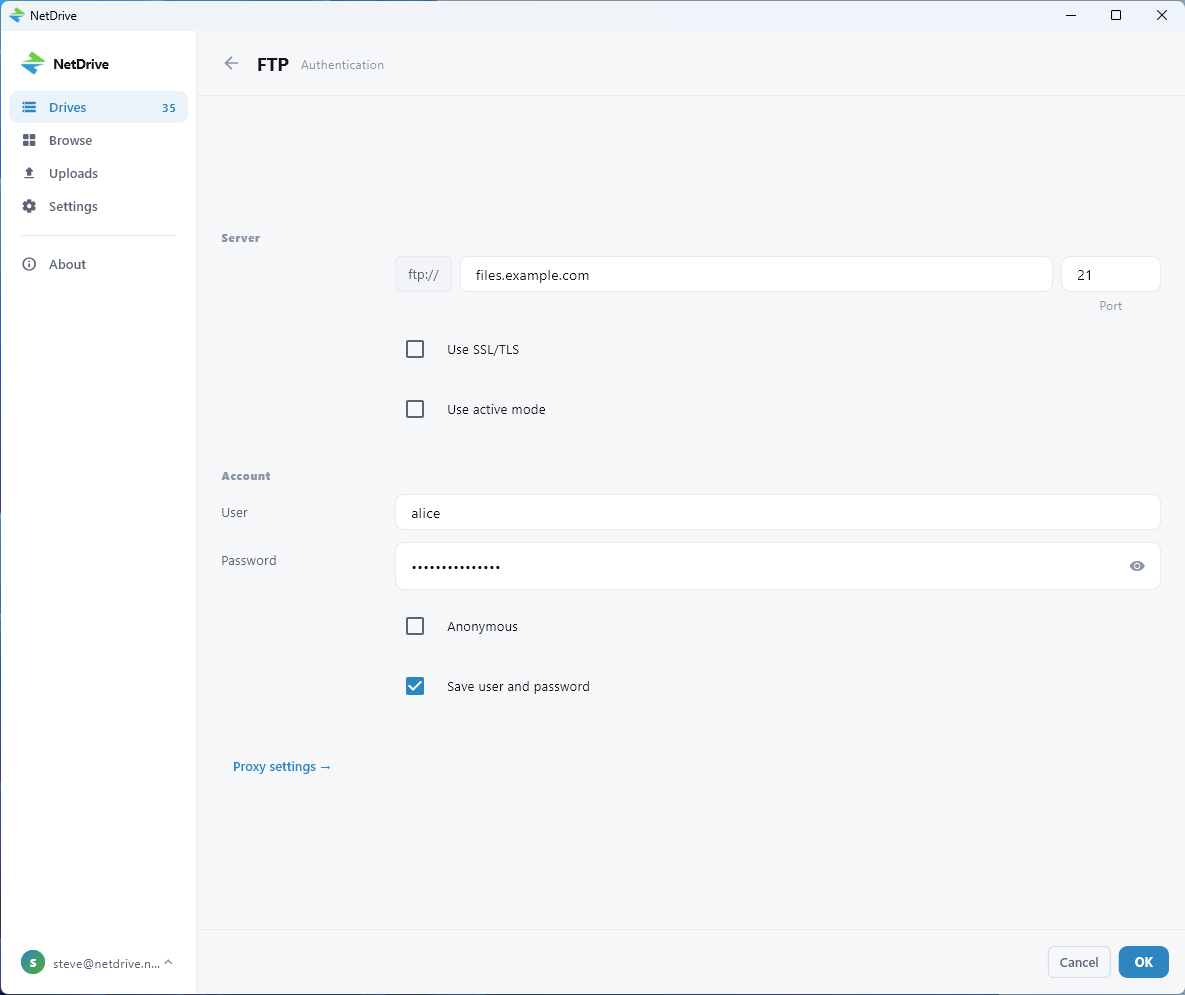
- Click Connect. The FTP form opens with Authentication next to its title.
Fill in the fields described below, and click OK.
When NetDrive connects, Connected appears under Storage type.
- If you want, click Options to change the options below, or click Browse next to Remote path to show only one folder.
- Click Add.
If the connection fails, the reason appears under Storage type. Check the fields and click Connect again. See Connect to your storage.
The FTP form
Server
- Address: enter the server's host name or IP address in the box after
ftp://, for exampleftp.example.com. - Port:
21by default. If you type the port after the host name, such asftp.example.com:2121, NetDrive moves it into Port when you leave the box. - Use SSL/TLS: connects with FTPS. The address changes to
ftps://, and port21changes to990. If your server uses another port, enter it in Port. - Use active mode: connects in active mode. Without it, NetDrive uses passive mode. Select it only if your server needs active mode.
Account
- User and Password: your FTP account.
- Anonymous: for a server that allows anonymous access. Select it and leave User and Password empty.
- Save user and password (selected by default): keeps the user name and password with the drive. See Save authentication information.
Options
Click Options in the form. You can open it before you connect.
- Charset: how NetDrive reads file and folder names from the server. Autodetect (the default) works for most servers. If names with non-English letters look broken, choose Force UTF-8. For an older server that names files in the character set of your computer's language instead of UTF-8, choose Local charset.
- Use server time for files/folders: shows the times of files and folders as the server gives them.
- Adjust server time, offset by: the hours and minutes NetDrive adds to the times the server gives. Use it when the server's clock is in another time zone and every file shows a time off by the same amount. Enter a negative number to subtract. Both are
0by default. - Max sessions: how many connections NetDrive may open to the server at the same time. The default is
5. Lower it if your server limits the number of connections per user. - Total space: the total size, in TB, that the drive reports to your computer.
- Bandwidth: the speed limit for this drive in KB/s.
0(the default) means no limit. - Connection Timeout: how many seconds NetDrive waits when it connects to the server. The default and smallest value is
10.
Click OK to keep your changes. The drive's proxy is set with Proxy settings at the bottom of the screen; see Proxy for this drive.