Collect and send logs
NetDrive writes what it does to log files. When you report a problem, our support team may ask for them. Follow the steps below so that one set of logs has everything we need.
1. Set the log level to VERBOSE
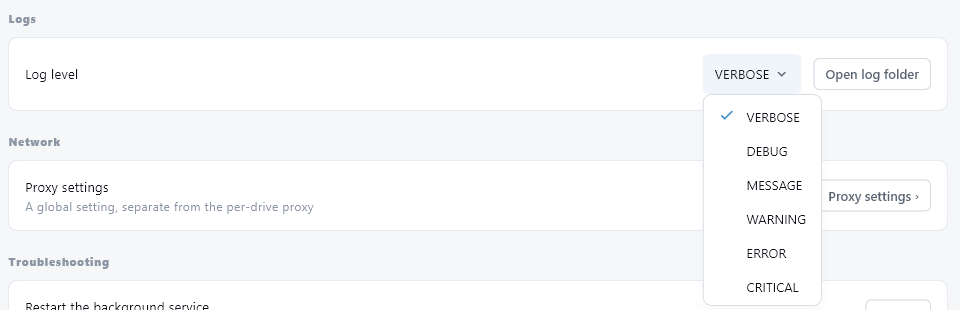
If you can sign in: open Settings, scroll down to Logs, and set Log level to VERBOSE.
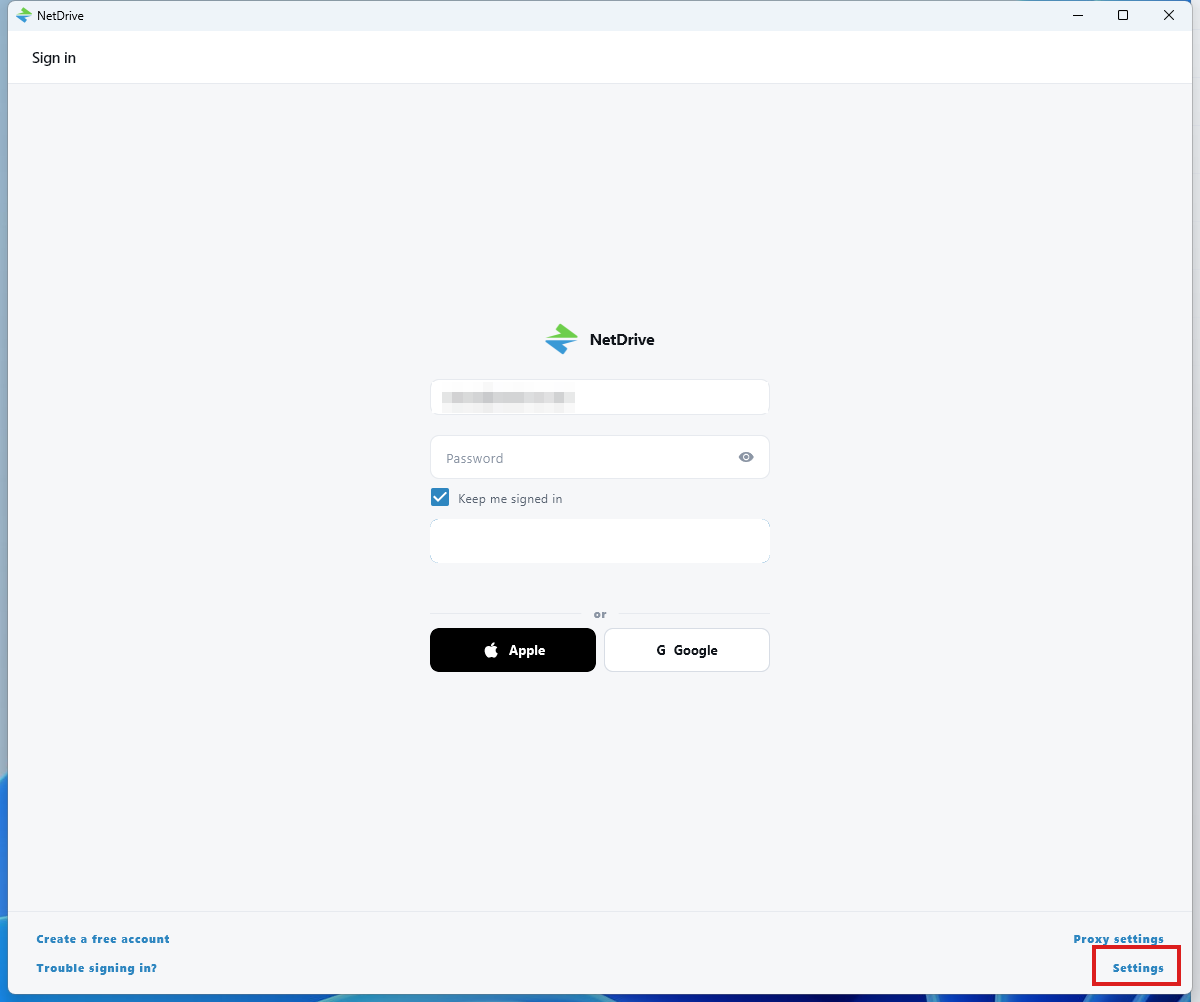
If you cannot sign in: click Settings at the lower right of the sign-in screen. It has the same Logs section.
The new level takes effect right away. You don't need to restart NetDrive or mount your drives again.
2. Reproduce the problem
Do again what caused the problem, so that it is written to the log files. Write down the time it happened. It helps us find the right lines.
3. Collect the log files
Click Open log folder in Settings > Logs, or Log in a drive's ⋮ menu.
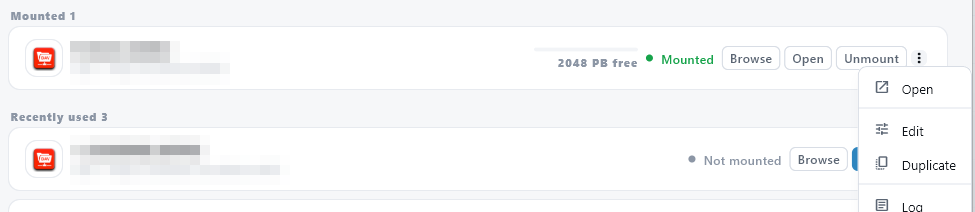
The log folder opens:
- Windows:
C:\ProgramData\NetDrive3\nd3log. When you open it with a drive's Log menu, the log file of that drive is already selected. - Mac:
~/Library/Logs/NetDrive3/nd3log
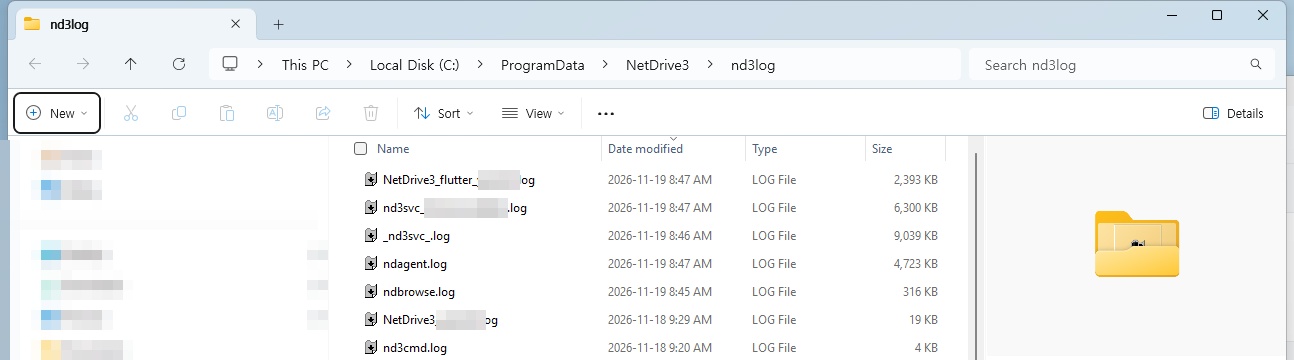
Select all the files in the folder (Ctrl+A on Windows, ⌘A on a Mac) and compress them into one zip file:
- Windows 11: right-click, and then choose Compress to… > ZIP File.
- Windows 10: right-click, and then choose Send to > Compressed (zipped) folder.
- Mac: right-click, and then choose Compress.
Archive.zipis created in the same folder.
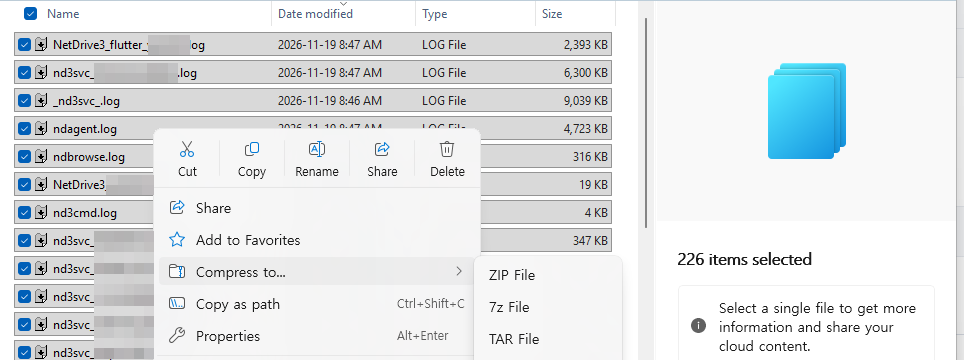
Send the whole folder, not only some of the files. If the zip file is too large to send, include only the files that changed around the time of the problem.
On a Mac, also zip the drive logs
On Apple Silicon Macs with macOS 26 or later, drives connect through FSKit and write their own logs to another folder. Zip it too:
- In Finder, choose Go > Go to Folder… (⇧⌘G).
- Paste
~/Library/Containers/com.bdrive.netdrive.fsextension/Data/Library/Caches/ndfs-core/logand press Return. - Select all the files, compress them, and send this zip file with the first one.
If Finder cannot find the folder, skip this step.
Problems with installing
- Mac: if the problem is with installing or uninstalling NetDrive, also send
/Library/Logs/NetDrive3/install.log. See Install and uninstall. - Windows: if the installation fails, send the installer logs in the
%TEMP%\Bdrivefolder. See Install and uninstall.
4. Send them privately
Do not attach log files to a public post. Log files do not contain your password or sign-in tokens, but they do contain your account e-mail address, server addresses, drive names, and file names.
Send the zip files to our support team in a private message (PM) on the forum, or by e-mail to the address our support team gave you. Then reply on your topic that you have sent them.
5. Set the log level back
When you're done, set Log level in Settings > Logs back to MESSAGE. VERBOSE logs grow quickly.