ImageKit
This guide covers the ImageKit media library. You connect with your URL endpoint and an API key pair. ImageKit was added in NetDrive 4. For the parts of the Add drive form that every storage shares, see Add a drive.
Before you start
Open Developer > API keys in your ImageKit dashboard and copy the URL endpoint, the public key, and the private key.
Connect to ImageKit
- Click Drives in the left menu, and then click Add drive.
- In Storage type, choose ImageKit. It is in the Other group.
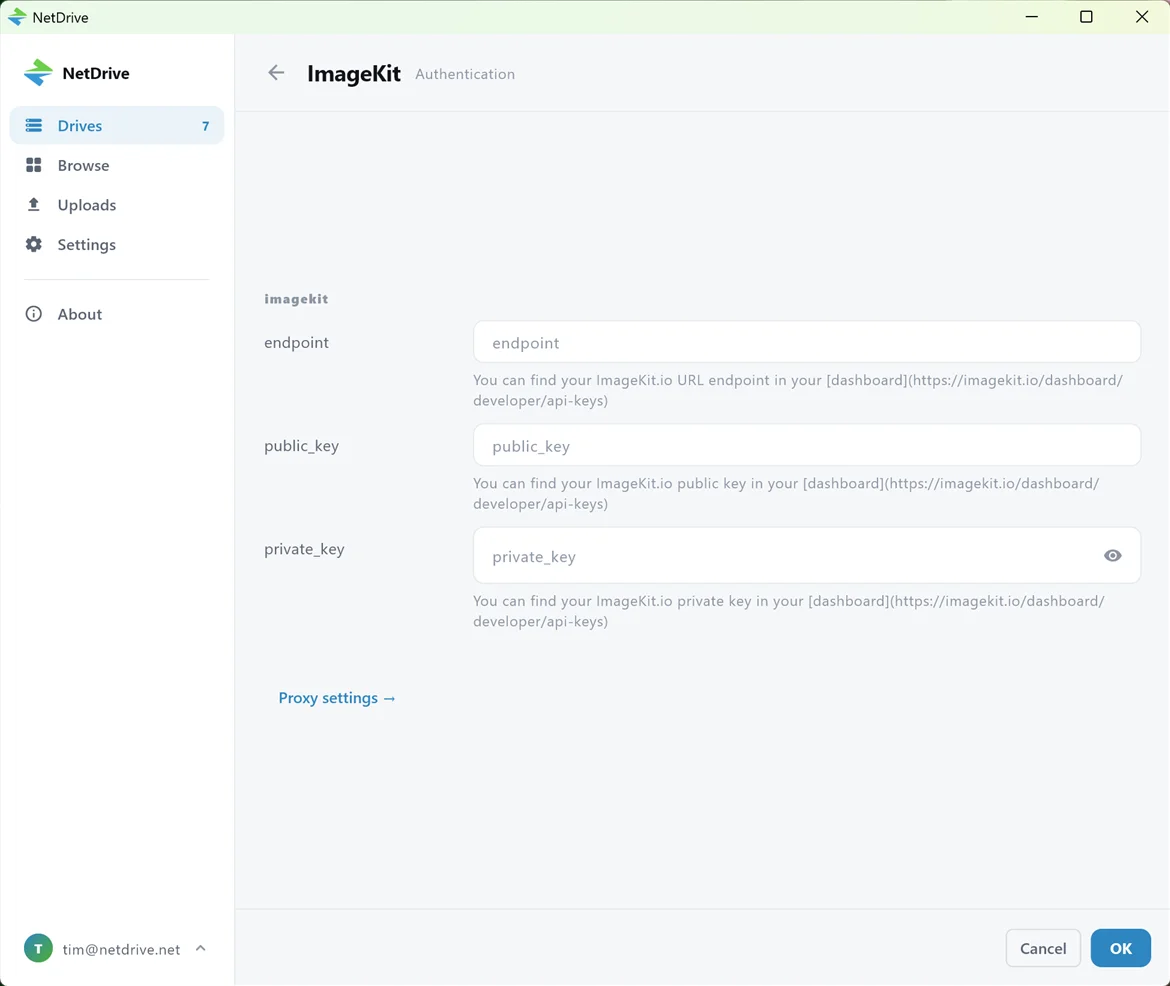
- Click Connect. The ImageKit form opens with Authentication next to its title.
Fill in the fields described below, and click OK.
When NetDrive connects, Connected appears under Storage type.
- If you want, click Browse next to Remote path to show only one folder.
- Click Add.
If the connection fails, the reason appears under Storage type. Check the fields and click Connect again. See Connect to your storage.
The ImageKit form
Each field in this form is labeled with a short name, such as endpoint, with a description under it. Enter the values below.
endpoint: your ImageKit URL endpoint.public_key: your ImageKit public key.private_key: your ImageKit private key.
Options
This storage type has no Options. Bandwidth limits and the reported drive size are not available for it.