File lock
Team
Lock a file to show that you are working on it. While a file is locked, it cannot be renamed or moved, and other people cannot change or delete it. NetDrive keeps track of locks itself, so file lock works the same on every storage. The Team Guide shows the lock icons and menus with pictures.
File lock is available on drives saved in your account. NetDrive hides it on drives saved On this device only. The drive does not have to be mounted: you can lock and unlock files in Browse.
Lock and unlock files in Browse
- Open the drive in Browse and go to the folder. See Browse without mounting.
- Select one or more files, right-click, and click Lock (Lock 3 items when you selected several).
To unlock a file you locked on this computer, select it, right-click, and click Unlock. NetDrive does not ask for confirmation.
- Only files can be locked, not folders. If the selection includes a folder, the lock items are dimmed with "Folders cannot be locked."
- If the selection mixes locked and unlocked files, the lock items are dimmed with "The selection mixes locked and unlocked files." Select them separately.
- If a lock or unlock fails, NetDrive shows "Could not lock the file." or "Could not unlock the file." Someone else may have locked the file in the meantime. Click Refresh to see the current locks.
Force unlock
A file locked by someone else, or by your account on another computer, can only be unlocked with Force unlock….
- Select the file, right-click, and click Force unlock….
- NetDrive explains that forcing the lock open can clash with the work in progress, shows who locked the file on which device, and warns that this cannot be undone.
- Click Force unlock.
Use it only when you are sure the file is no longer being worked on, for example when a team member forgot to unlock it.
Lock icons
In Browse, a lock icon appears next to the name of a locked file. Point to it to see who locked the file.
- Blue lock: locked by you on this computer ("Locked by you · this device"). You can still edit the file, but you cannot rename or move it until you unlock it.
- Red lock: locked by someone else, or by your account on another computer ("Locked by … · …" with the email address and device name). You cannot change, rename, move, or delete it.
- Gray lock outline on a folder: "Contains locked files". The folder cannot be renamed, moved, or deleted while it contains locked files.
The bar at the bottom of Browse shows how many files on the drive are locked and how many of them are yours, such as "4 locked · 2 yours".
On a mounted drive, File Explorer shows the same colors on file and folder icons:


The locked files list
Click Locked files (the lock icon in the Browse toolbar), or right-click and click Locked files. The number on the toolbar icon is how many files on the drive are locked.
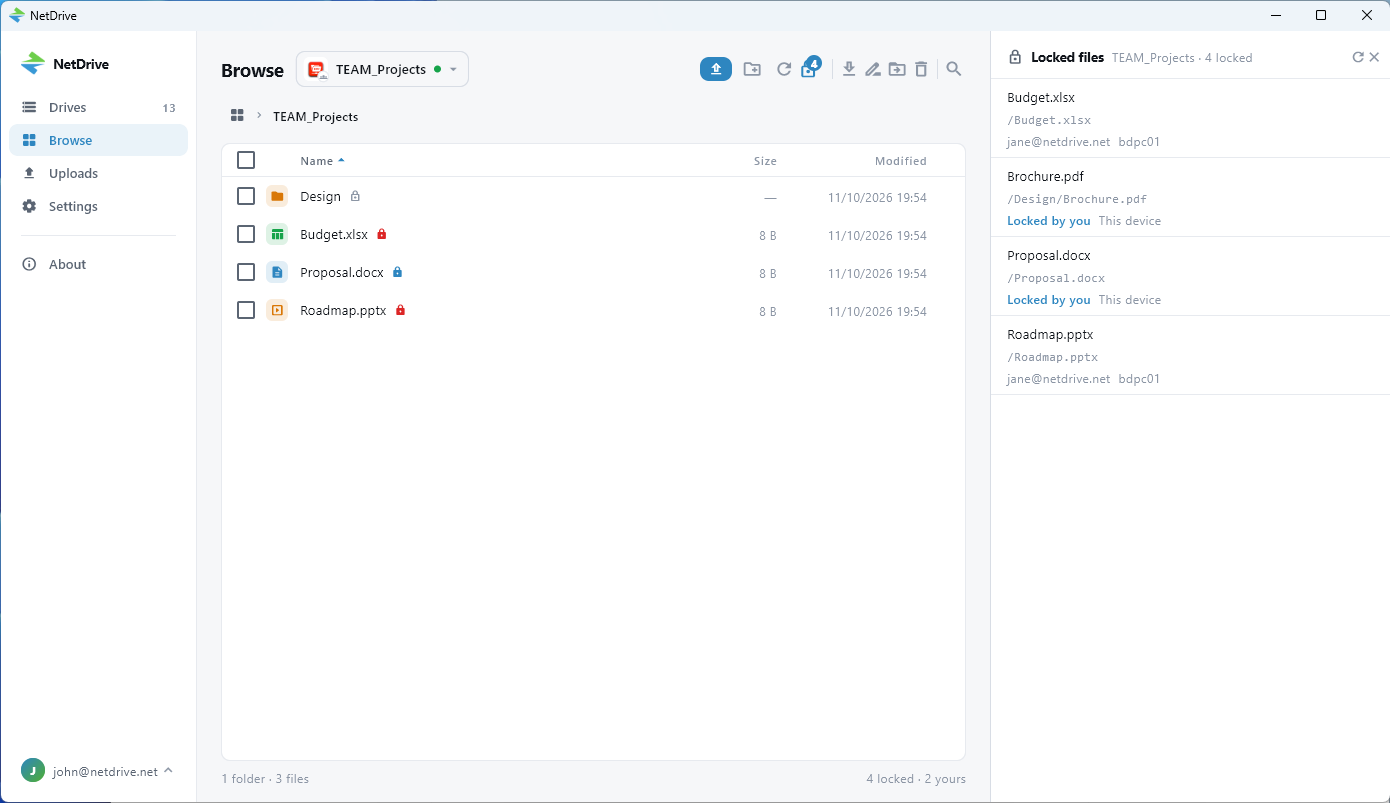
The panel on the right lists every locked file on the drive, with the drive name and the count at the top. Each row shows the file name, its path on the storage, and who locked it on which device (Locked by you and This device for your own locks on this computer). Point to a row to see its buttons:
- Go to location: opens the folder that holds the file.
- Unlock for your own locks on this computer, or Force unlock… for other locks.
Original missing means "The lock is on the server, but the file is gone." Unlock it to clear the lock. NetDrive checks this only while the drive is mounted.
The refresh button reads the list again, and ✕ closes the panel. When nothing is locked, the panel shows "No locked files".
Lock from File Explorer or Finder
On a mounted drive, right-click a file in File Explorer and point to NetDrive to use Lock, Unlock, and Force unlock. On a Mac, Finder has the same NetDrive menu.
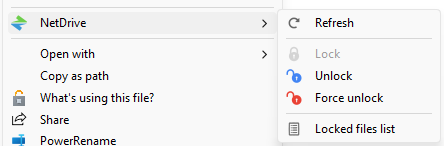
Locked files list in this menu opens the drive in Browse with the Locked files panel, which lists the locked files on the drive, who locked each one, and on which device.
See other people's locks
NetDrive does not update locks live. It reads them when you open a drive in Browse, when you open the Locked files panel, or when you click Refresh. When you lock or unlock a file, NetDrive updates only that file. To see locks that others made just now, click Refresh.
What a lock blocks in Browse
- Rename…, Move…, and Delete… are dimmed for locked files and for folders that contain them, with "Locked files cannot be renamed, moved, or deleted." To change your own locked file, unlock it first.
- If you drag several items onto a folder, locked ones stay where they are, and NetDrive shows how many were not moved.
- When you upload, a locked file with the same name cannot be overwritten. In the dialog that asks what to do with existing files, Overwrite is dimmed with "A locked file cannot be overwritten."
- You can still download locked files.
What a lock blocks in File Explorer or Finder
On a mounted drive, File Explorer on Windows and Finder on a Mac work the same way:
- No locked file can be renamed or moved, not even a file you locked.
- A file you locked on this computer can be deleted, and deleting it also removes the lock. A file locked by someone else, or by your account on another computer, cannot be deleted.
- Apps such as Word and TextEdit briefly rename the original file when they save. NetDrive allows this, so you can edit a file you locked in these apps and save it.
Unlock when unmounting
To have NetDrive unlock the locked files when you unmount a drive, turn on Unlock all locked files when unmounting in Settings > Drives. See Settings.
When the lock items are dimmed
If Locked files and the lock items are dimmed with "Could not open the lock session.", NetDrive is not connected to the lock service yet. Right after you open a drive, this can last up to about 20 seconds. If it stays dimmed, NetDrive could not reach the lock service. Check your internet connection and open the drive again.
"The server path for this file is unknown." means NetDrive could not find where the file is on the storage, so it does not lock it.