The main window
After you sign in, the main window opens. The menu is on the left, and the screen you choose there fills the rest of the window. Your account is at the bottom left.
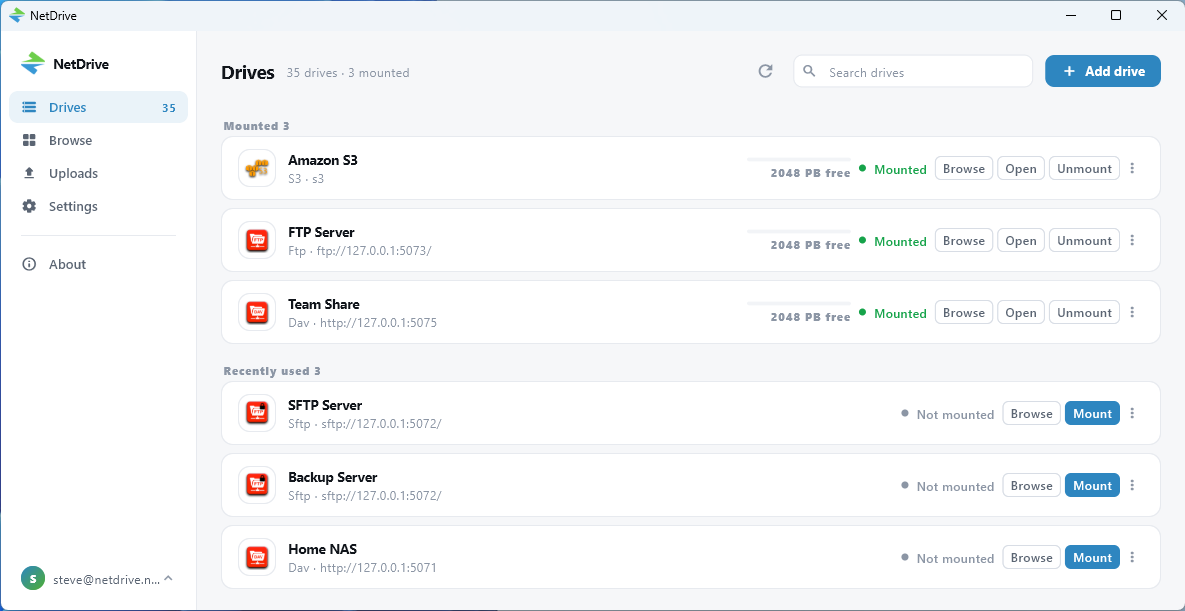
Left menu
- Drives: all your drives. This is the first screen after you sign in. The number next to Drives is how many drives you have. At the top of the screen you can search with Search drives and add a drive with Add drive. See Add a drive and Mount and manage drives.
- Browse: see the files on a drive without mounting it, and upload or download files there. See Browse without mounting.
- Uploads: files that are being uploaded to your storage, and files you downloaded in Browse. The number next to Uploads counts the files that are in progress or waiting; failed ones are not counted. See Uploads.
- Settings: options for NetDrive. See Settings.
- About: see the NetDrive version, your license, and Release notes, and check for updates. See About and updates.
If you choose another menu item while you are adding a drive, NetDrive asks Discard this drive? first, because leaving discards what you entered.
Account menu
Your email address is shown at the bottom left. Click it to open the account menu. The menu shows your full email address and these items:
- Appearance: switch between Dark and Light. NetDrive remembers your choice. This is the same setting as Appearance in Settings, which also offers Match system setting.
- Manage account: opens your account page on the web in your browser, already signed in.
- Sign out: signs you out of NetDrive. Mounted drives are unmounted. See Sign in and sign out.
Click your account again to close the menu.
Closing the window
Closing the window does not quit NetDrive. It keeps running in the tray on Windows and in the menu bar on a Mac. To quit NetDrive, use the menu of its icon in the tray or menu bar.