Mega
This guide covers MEGA. You connect with the email address and password of your MEGA account. For the parts of the Add drive form that every storage shares, see Add a drive.
Connect to MEGA
- Click Drives in the left menu, and then click Add drive.
- In Storage type, choose Mega. It is in the Cloud storage group.
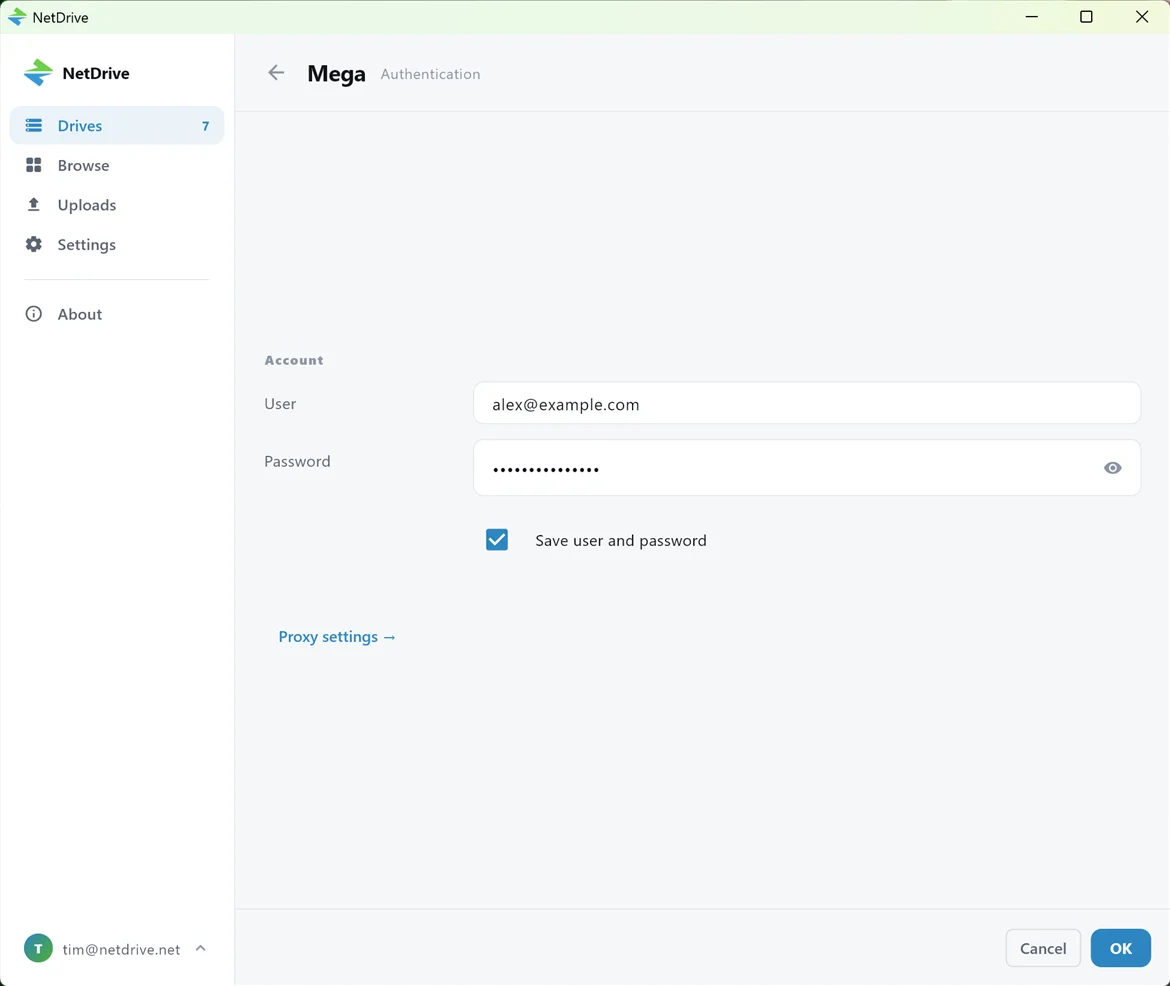
- Click Connect. The Mega form opens with Authentication next to its title.
Fill in the fields described below, and click OK.
When NetDrive connects, Connected appears under Storage type.
- If you want, click Options to change the options below, or click Browse next to Remote path to show only one folder.
- Click Add.
If the connection fails, the reason appears under Storage type. Check the fields and click Connect again. See Connect to your storage.
The Mega form
Account
- User: the email address of your MEGA account.
- Password: the password of your MEGA account.
- Save user and password (selected by default): keeps them with the drive. See Save authentication information.
If your MEGA account asks for two-factor authentication, NetDrive shows Verification code. Enter the code from your authenticator app and click Confirm.
Options
Click Options in the form. You can open it before you connect.
- Use server time for files/folders: shows the times of files and folders as MEGA gives them.
- Bandwidth: the speed limit for this drive in KB/s.
0(the default) means no limit.
Click OK to keep your changes. The drive's proxy is set with Proxy settings at the bottom of the screen; see Proxy for this drive.